|
|
| Line 3: |
Line 3: |
| '''VEHRDICT Dashboard''' is the central hub of the system, providing a real-time overview of patient activity, tasks, appointments, and clinical data. | | '''VEHRDICT Dashboard''' is the central hub of the system, providing a real-time overview of patient activity, tasks, appointments, and clinical data. |
|
| |
|
| [[File:dashboard-overview.png|1000px|center|VEHRDICT Dashboard Overview]] | | [[File:Screenshot 2026-04-10 221610.png|1000px|center|VEHRDICT Dashboard Overview]] |
|
| |
|
| == Overview == | | == Overview == |
| The dashboard provides a centralized view of key activities, allowing users to: | | The dashboard provides a centralized view of key activities... |
| | |
| * Monitor daily appointments
| |
| * Track pending tasks and orders
| |
| * View recent patient encounters
| |
| * Access quick actions
| |
| | |
| This helps improve workflow efficiency and patient care.
| |
|
| |
|
| --- | | --- |
| Line 20: |
Line 13: |
| The top section displays important statistics: | | The top section displays important statistics: |
|
| |
|
| * '''Today's Patients''' – Number of scheduled patients | | * Today's Patients |
| * '''Unsigned Encounters''' – Requires review/signature | | * Unsigned Encounters |
| * '''Pending Orders''' – Incomplete medical orders | | * Pending Orders |
| * '''Patient Messages''' – Unread messages | | * Patient Messages |
| * '''Open Tasks''' – Pending tasks | | * Open Tasks |
|
| |
|
| <!-- 📸 Screenshot 2: TOP SUMMARY CARDS -->
| | [[File:dashboard-summary.png|300px|right|Dashboard Key Metrics]] |
| [[File:dashboard-summary.png|900px|center|Dashboard Key Metrics]] | |
|
| |
|
| --- | | --- |
| Line 34: |
Line 26: |
| Displays all appointments for the current day. | | Displays all appointments for the current day. |
|
| |
|
| <!-- 📸 Screenshot 3: TODAY'S SCHEDULE -->
| | [[File:Screenshot 2026-04-09 193448.png|300px|right|Today's Schedule]] |
| [[File:todays-schedule.png|900px|center|Today's Schedule Section]] | |
| | |
| ---
| |
| | |
| == Upcoming Appointments ==
| |
| Shows appointments scheduled in the next 7 days.
| |
| | |
| <!-- 📸 Screenshot 4: UPCOMING -->
| |
| [[File:upcoming-appointments.png|900px|center|Upcoming Appointments]]
| |
|
| |
|
| --- | | --- |
| Line 50: |
Line 33: |
| Displays recent patient visits and medical records. | | Displays recent patient visits and medical records. |
|
| |
|
| * Date
| | Image |
| * Patient Name
| |
| * Reason for Visit
| |
| * Status
| |
| | |
| <!-- 📸 Screenshot 5: RECENT ENCOUNTERS -->
| |
| [[File:recent-encounters.png|900px|center|Recent Encounters]]
| |
| | |
| ---
| |
| | |
| == My Tasks ==
| |
| Displays assigned tasks and their status.
| |
| | |
| <!-- 📸 Screenshot 6: MY TASKS -->
| |
| [[File:my-tasks.png|900px|center|My Tasks Section]]
| |
|
| |
|
| --- | | --- |
|
| |
|
| == Quick Actions == | | == Quick Actions == |
| Quick access to frequently used features: | | Quick access to features: |
|
| |
|
| * Find Patient | | * Find Patient |
| Line 77: |
Line 46: |
| * New Note | | * New Note |
| * Encounters | | * Encounters |
|
| |
| <!-- 📸 Screenshot 7: QUICK ACTIONS -->
| |
| [[File:quick-actions.png|900px|center|Quick Actions]]
| |
|
| |
| ---
| |
|
| |
| == Patient Messages ==
| |
| Displays communication between patients and providers.
| |
|
| |
| If no messages:
| |
| ''Your inbox is clear!''
| |
|
| |
| <!-- 📸 Screenshot 8: PATIENT MESSAGES -->
| |
| [[File:patient-messages.png|900px|center|Patient Messages]]
| |
|
| |
| ---
| |
|
| |
| == My Notes ==
| |
| Displays personal notes created by the user.
| |
|
| |
| If empty:
| |
| ''No notes yet.''
| |
|
| |
| <!-- 📸 Screenshot 9: MY NOTES -->
| |
| [[File:my-notes.png|900px|center|My Notes Section]]
| |
|
| |
| ---
| |
|
| |
| == Clinic Information ==
| |
| Displays clinic and user details:
| |
|
| |
| * Brighton Clinic
| |
| * 123 Main Street
| |
| * Allentown, PA
| |
|
| |
| <!-- 📸 Screenshot 10: PROFILE / CLINIC -->
| |
| [[File:clinic-info.png|900px|center|Clinic Information]]
| |
|
| |
| ---
| |
|
| |
| == Dashboard Widgets Explained ==
| |
| Each widget provides real-time insights:
| |
|
| |
| * '''Today's Patients''' – Daily patient count
| |
| * '''Unsigned Encounters''' – Pending signatures
| |
| * '''Pending Orders''' – Incomplete orders
| |
| * '''Patient Messages''' – Communication alerts
| |
| * '''Open Tasks''' – Task tracking
| |
|
| |
| ---
| |
|
| |
| == How to Use the Dashboard ==
| |
|
| |
| # Click '''Find Patient''' to search records
| |
| # Use '''Schedule''' to create appointments
| |
| # Select '''Messages''' to communicate
| |
| # Click '''New Task''' to assign tasks
| |
| # Use '''New Note''' for documentation
| |
|
| |
|
| --- | | --- |
|
| |
|
| == Tips for Efficient Use == | | == Tips for Efficient Use == |
|
| |
| * Check unsigned encounters regularly
| |
| * Use Quick Actions to save time | | * Use Quick Actions to save time |
| * Keep tasks updated | | * Monitor tasks and messages |
| * Monitor patient messages frequently
| |
| | |
| ---
| |
| | |
| == Known Issues / Limitations ==
| |
| | |
| During testing, the following issues were observed:
| |
| | |
| * Unable to save:
| |
| ** Vitals
| |
| ** Immunizations
| |
| ** Medications
| |
| ** Prescriptions
| |
| ** Invoices
| |
| ** Forms
| |
| | |
| These may be due to permission restrictions.
| |
| | |
| <!-- 📸 Screenshot 11: ERROR -->
| |
| [[File:permission-issue.png|900px|center|Permission Issue Example]]
| |
| | |
| ---
| |
| | |
| = Additional Features =
| |
| | |
| == Add Patient – Contact Information ==
| |
| | |
| Used to enter patient details such as:
| |
| | |
| * Name, DOB, Gender
| |
| * Email and Phone
| |
| * Address
| |
| * Identification
| |
| | |
| <!-- 📸 Screenshot 12: ADD PATIENT FORM -->
| |
| [[File:add-patient.png|900px|center|Add Patient Form]]
| |
| | |
| ---
| |
| | |
| == Scheduling a Patient ==
| |
| | |
| Steps:
| |
| | |
| # Go to '''Schedule'''
| |
| # Click '''Add Appointment'''
| |
| # Select patient
| |
| # Set date and time
| |
| # Click '''Save'''
| |
| | |
| <!-- 📸 Screenshot 13: SCHEDULING -->
| |
| [[File:scheduling.png|900px|center|Scheduling Appointment]]
| |
| | |
| ---
| |
| | |
| == Encounters ==
| |
| Manage patient visits and clinical records.
| |
| | |
| <!-- 📸 Screenshot 14: ENCOUNTERS -->
| |
| [[File:encounters.png|900px|center|Encounters Section]]
| |
| | |
| ---
| |
| | |
| == Medications / Prescriptions ==
| |
| Add and manage prescriptions for patients.
| |
| | |
| <!-- 📸 Screenshot 15: MEDICATION -->
| |
| [[File:medication.png|900px|center|Prescription Section]]
| |
| | |
| ---
| |
| | |
| == Vitals ==
| |
| Track patient health data:
| |
| | |
| * Blood Pressure
| |
| * Temperature
| |
| * Pulse
| |
| * BMI
| |
| | |
| <!-- 📸 Screenshot 16: VITALS -->
| |
| [[File:vitals.png|900px|center|Vitals Section]]
| |
| | |
| ---
| |
| | |
| == Billing & Payments ==
| |
| | |
| Steps:
| |
| | |
| # Create encounter
| |
| # Add CPT/ICD codes
| |
| # Generate claim
| |
| # Add payment
| |
| | |
| <!-- 📸 Screenshot 17: PAYMENT -->
| |
| [[File:payment.png|900px|center|Payment Section]]
| |
| | |
| ---
| |
| | |
| == Billing Reports ==
| |
| | |
| Generate reports based on:
| |
| | |
| * Patient
| |
| * Status
| |
| * Date range
| |
| | |
| <!-- 📸 Screenshot 18: REPORT -->
| |
| [[File:billing-report.png|900px|center|Billing Report]]
| |
| | |
| ---
| |
VEHRDICT Dashboard
VEHRDICT Dashboard is the central hub of the system, providing a real-time overview of patient activity, tasks, appointments, and clinical data.
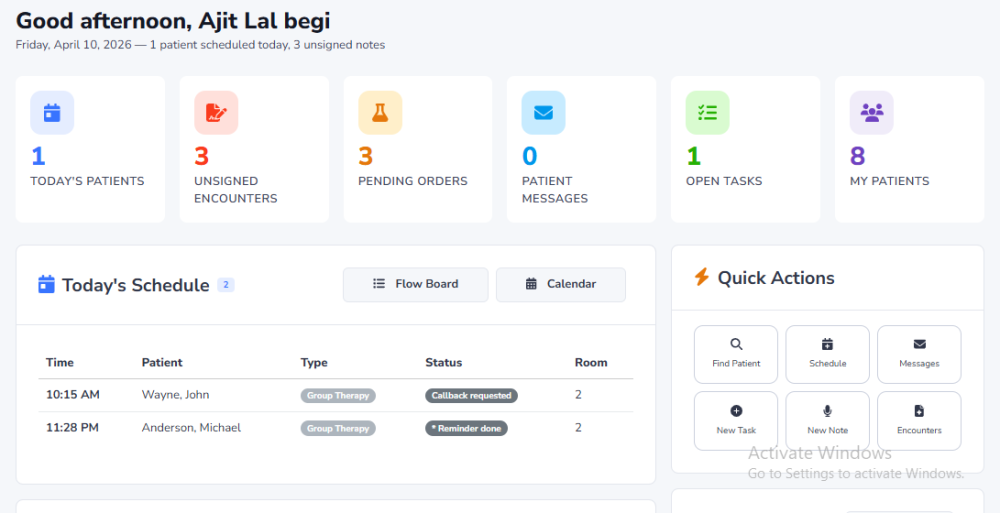 VEHRDICT Dashboard Overview
Overview
The dashboard provides a centralized view of key activities...
---
Key Metrics
The top section displays important statistics:
- Today's Patients
- Unsigned Encounters
- Pending Orders
- Patient Messages
- Open Tasks
Dashboard Key MetricsDashboard Key Metrics
---
Today's Schedule
Displays all appointments for the current day.
 Today's Schedule
---
Recent Encounters
Displays recent patient visits and medical records.
Image
---
Quick Actions
Quick access to features:
- Find Patient
- Schedule
- Messages
- New Task
- New Note
- Encounters
---
Tips for Efficient Use
- Use Quick Actions to save time
- Monitor tasks and messages


